Configure TCP, tool geometry, and calibration#
Prerequisites: understand coordinate frames and have measured your physical tool and camera geometry. Outcome: place GTA’s tool keypoint and named axes in the correct frame without double-applying a TCP offset.
1. Identify the pose origin#
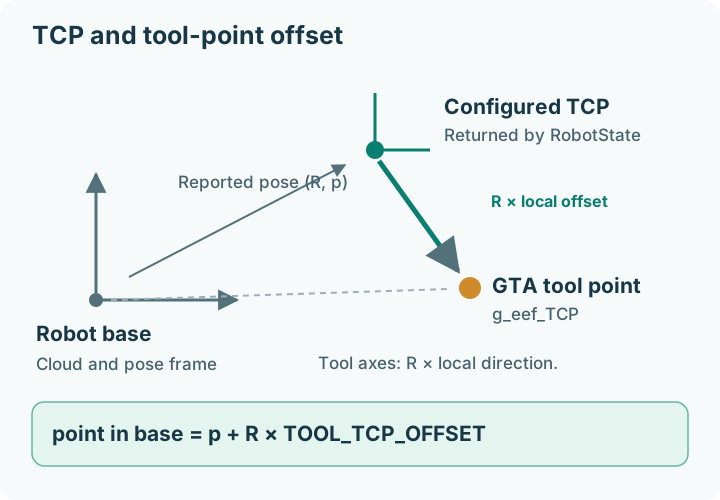
The UR5e state backend returns getActualTCPPose(): the robot controller’s
configured TCP in base coordinates. A TCP is a physical/controller-defined
tool-center point. Setting GTA’s TOOL_TCP_OFFSET does not change it.
Before editing GTA configuration, establish which TCP the controller already reports. Configure the physical robot’s TCP and payload using the robot’s own tooling and verify them independently.
2. Measure the additional GTA keypoint#
TOOL_TCP_OFFSET is a three-vector in metres, expressed locally relative
to the reported pose. GTA transforms this point into the base frame.
If the reported TCP already coincides with the point you want GTA to track, the additional offset can be
[0,0,0].If the desired point is 10 cm along the reported frame’s positive Z axis, the geometric example is
[0,0,0.10].Do not apply a flange-to-tip offset twice if the controller TCP already incorporates it.
Set the offset from your tool measurements. The bundled default
[0,0,0.1628] is workcell-specific.
This pure numeric example applies a rotated local offset without connecting to a device:
"""Pure geometry example: a reported TCP pose plus an additional local point."""

import numpy as np
from scipy.spatial.transform import Rotation


def point_in_base(pose, local_offset):
    pose = np.asarray(pose, dtype=float)
    offset = np.asarray(local_offset, dtype=float)
    if pose.shape != (6,) or offset.shape != (3,):
        raise ValueError("Expected a six-value pose and three-value local offset")
    if not np.isfinite(pose).all() or not np.isfinite(offset).all():
        raise ValueError("Geometry must be finite")
    return pose[:3] + Rotation.from_rotvec(pose[3:]).apply(offset)


def example():
    # Hypothetical TCP: translation in m; +90 degrees about base Y in radians.
    pose = [0.2, -0.3, 0.4, 0, np.pi / 2, 0]
    # A point 10 cm along the TCP-local Z direction.
    result = point_in_base(pose, [0, 0, 0.10])
    np.testing.assert_allclose(result, [0.3, -0.3, 0.4])
    return result
3. Define meaningful directions#
TOOL_AXES supplies the local directions referred to as
a_eef_x, a_eef_y, and a_eef_z. The planning conventions describe
Z as the approach direction and Y as the pinch direction.
Set all three nonzero vectors in single-line JSON. GTA validates finite values but deliberately does not normalize them or enforce a right-handed orthonormal basis. The default vectors are not a standard identity frame. Check their physical meaning rather than changing signs to make a matrix look conventional.
4. Establish camera-to-base calibration#
T_BASE_CAM is a 4 × 4 camera-to-base transform. Its translation uses
metres. Set it from your measured camera-to-base calibration.
In the GTA execution path, the incoming cloud must already be in base coordinates. Configuring this matrix alone does not transform that cloud. The camera position is used to orient estimated normals. Keep the upstream transformation and GTA calibration consistent.
Check known scene points and surface-normal directions without commanding motion. Review the RGB/cloud registration and the named world-axis directions as well.
5. Apply and verify a change#
Stop active execution and close the applications.
Edit
TOOL_TCP_OFFSET,TOOL_AXES, and calibration only from reviewed measurements.Restart the application so configuration is reloaded.
Requery the scene, regenerate the script, and inspect the embedded tool values.
Review the 3D geometry before an operator-approved hardware rehearsal.
Generated scripts freeze tool geometry. Old scripts and saved preparation artifacts are not silently rewritten.
Verify: a known local point transforms to the expected base location, axis directions match the actual tool, and no offset is counted twice. Run the offline example tests to check the calculation above. For incorrect geometry, see camera and grounding troubleshooting.