Your first image-only task#
Prerequisites: installation, valid model credentials,
the example cube image, and CAMERA_BACKEND=file.
Outcome: a task plan, parameterized skill recipes, image keypoints, and a generated script for inspection.
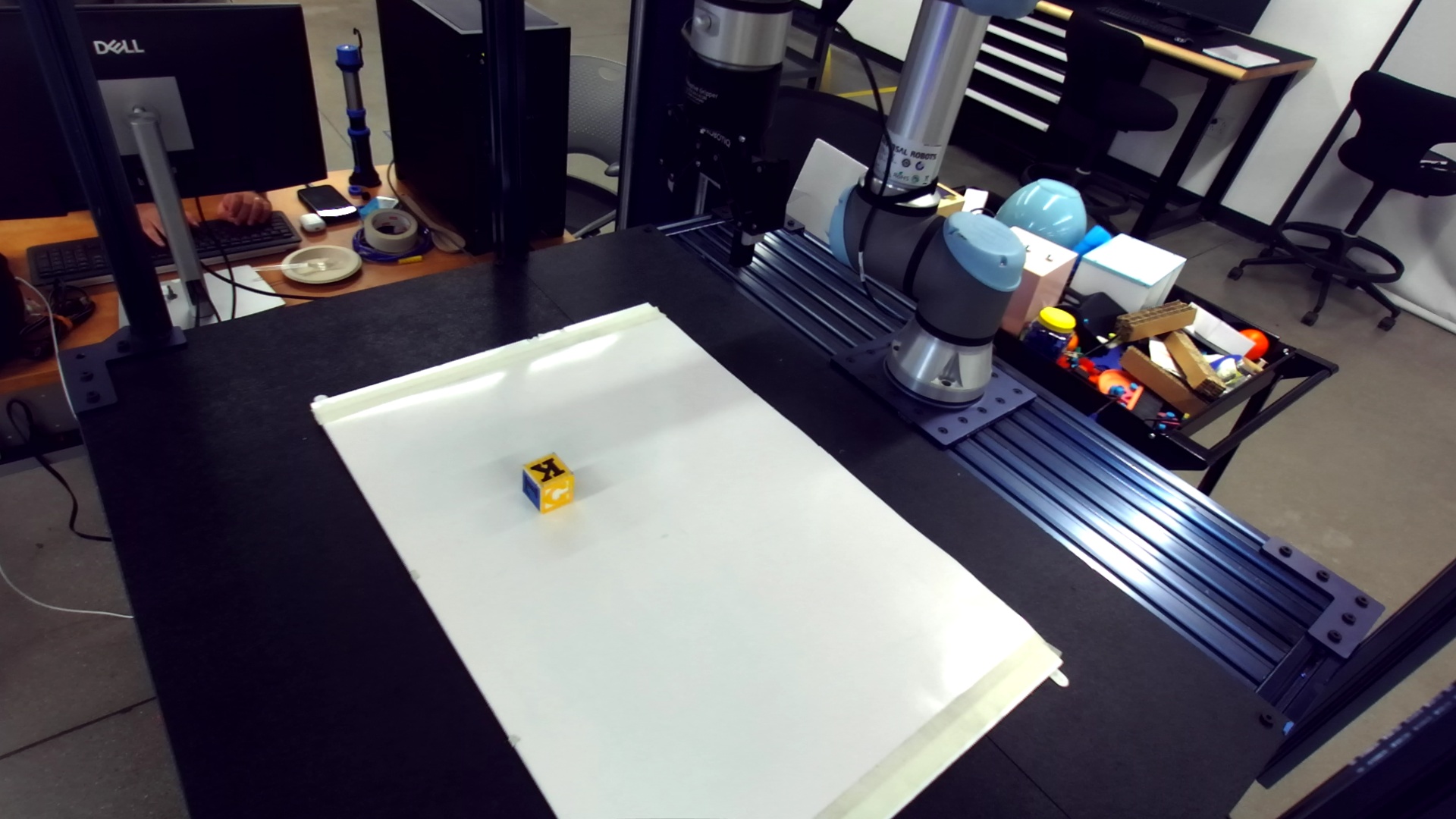
The example RGB image used in this tutorial. Image-file input supports planning and image grounding; it does not provide a point cloud for robot execution.#
1. Describe the task#
Start python main.py, open the dashboard, and enter:
Pick up the yellow cube from the white surface and lift it 5 cm.
Submit the task and wait for the pipeline to finish. The exact subtask count and phrasing can vary between model calls.
2. Inspect each stage#
Visit the Task Decomposer, Skill Generator, Parameter Setter, and Vision Module panels in order.
Check that the task concerns the yellow cube, not unrelated background objects.
Read the ordered subtasks and identify approach, grasp, and lift behavior.
Inspect the controller recipes. Controllers within a subtask act together; their list order sets priority.
Check the parameter values and units. A 5 cm distance is
0.05metres; do not assume a unit label converts the numeric value automatically.Inspect the annotated keypoints. They should lie on visible physical surfaces relevant to the requested grasp.
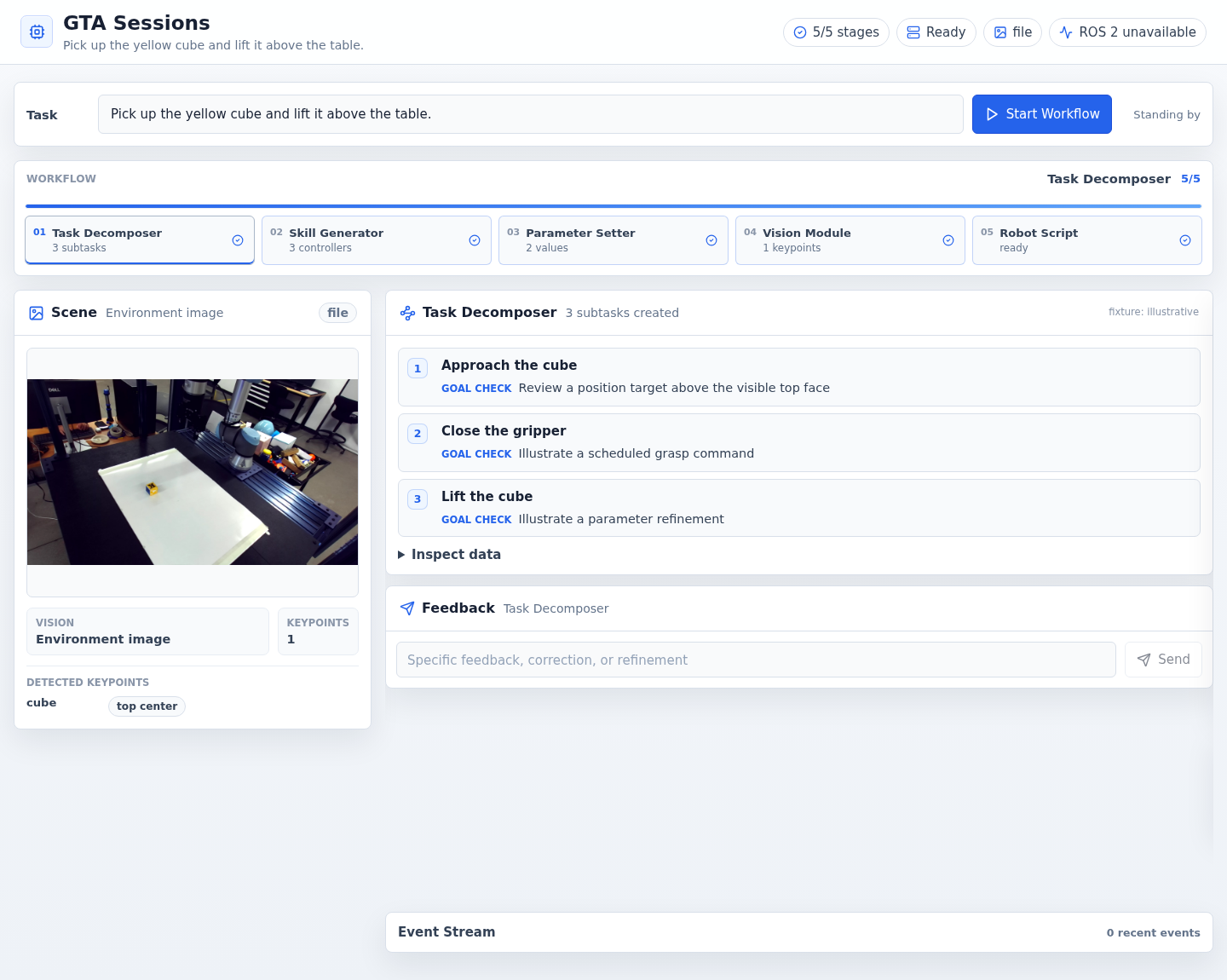
Example interface with synthetic data.#
3. Make one refinement#
Send feedback to the Parameter Setter, for example:
Can you lift the cube a bit higher?
You can include an exact distance if you have one in mind, such as “Change the lift distance to 7 cm.” Wait for downstream processing to finish, then inspect the updated recipe. See refinement.
If a keypoint is misplaced, use Vision feedback to describe the correction on this image. Use Requery when you want a new localization pass.
4. Generate and inspect the script#
Open Robot Script and choose Generate Script after grounding is current. Read the imports, object/keypoint setup, tool offset, controller lists, and subtask order.
This tutorial ends at script inspection. To use Run or the robot controls, complete hardware setup and follow the execution guide.
5. Keep the result#
After generating the script, Save Workflow exports the current artifacts. This is an artifact export, not a full agent-context checkpoint. To save and resume complete agent state, continue with the library tutorial.
Verify: all four stages completed, annotations match the image, your refinement is reflected in the output, and the script is visible without a run. For failures, see model setup or grounding troubleshooting.