Review and execute a script#
Prerequisites: a reviewed ROS 2 workcell, current grounding and script, and an operator able to stop the physical robot. Outcome: understand and supervise one robot run.
Danger
Run, Reset Joints, Open Gripper, and Close Gripper operate physical hardware.
Review the full arm path and tool clearance, keep people outside the hazard
area, and keep the robot’s emergency stop accessible. GTA does not provide
general collision checking or a safety-rated stop.
These controls remain hardware operations when CAMERA_BACKEND=file is selected.
1. Prepare the workcell#
Complete the readiness checklist. Camera processing
and the gripper action server must already be running. Set GTA_BACKEND=ros2.
Stop any separately launched GTA robot command server. Managed Run owns its own server and refuses an existing-server conflict.
2. Review and run#
Inspect the current image, keypoints, parameters, tool geometry, and script.
Press Run in the Robot Script panel.
Wait for server readiness. The supervisor allows 30 seconds for startup and launches the script only after the server confirms readiness.
Wait for camera/point-cloud preparation and the Open3D preview.
Review the 3D geometry. Closing the preview allows execution to continue. If anything is wrong, use Cancel, not merely the window close button.
Monitor the active subtask and the separate server/script logs.
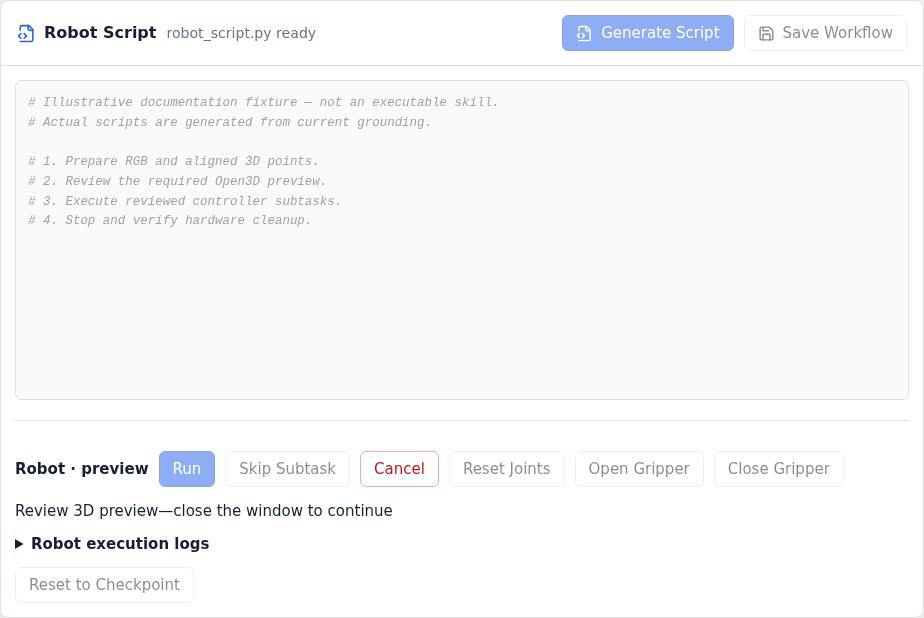
Example interface with synthetic data.#
The preview must open successfully. For graphics/GLX errors, see preview troubleshooting.
3. Skip, Cancel, and robot controls#
Control |
Effect |
|---|---|
Skip Subtask |
Ends the current subtask with normal skill cleanup and continues to the next |
Cancel |
Latches cancellation for the whole run, interrupts the script, and shuts down its server |
Reset Joints |
Separate operation to the helper’s recorded joint pose—not a collision-checked home motion |
Open / Close Gripper |
Separate supervised gripper action; no generated skill is required |
Skip is available only during an active subtask, not during preparation or preview. Requests carry run/subtask identity and only one skip can be pending. Skipping the final subtask finishes the script.
While Stopping, wait for owned processes to exit. The supervisor uses a five-second graceful shutdown window and can then terminate remaining owned processes. Missing or failed hardware cleanup is reported as an error, not successful completion.
4. Finish and inspect#
On completion, cancellation, or failure, the supervisor cleans up its script and server. It does not stop the external camera pipeline or gripper driver. It also does not return the robot to a home pose automatically.
Read any cleanup error before trying another run. Logs remain in
execution_logs/; see artifacts and storage.
Both dashboards use the same-checkout execution lock. Do not run standalone utilities or another repository’s application concurrently: those can bypass that lock.
Verify: the final status is understood, owned processes have exited, and no cleanup error remains unresolved. See execution troubleshooting.