Save and reuse tasks#
Prerequisites: GTA installed and provider settings configured. For live re-grounding, complete hardware setup. Outcome: save complete preparation state and continue from an independent working copy.
1. Prepare a checkpoint#
python library.py
Open http://127.0.0.1:8001/admin. In Prepare, generate and refine a task
as in the main dashboard. It is a separate workspace; the current main.py
workflow is not automatically transferred.
After the plan is parameterized and all background handlers are finished, open Robot Script and use Save Checkpoint. Give it a descriptive name and setup notes. A generated script is optional for a checkpoint; a valid parameterized plan and complete available context are required.
Saving may contact the provider to export conversation history. If required context cannot be exported, saving fails instead of publishing a partial checkpoint.
2. Organize the library#
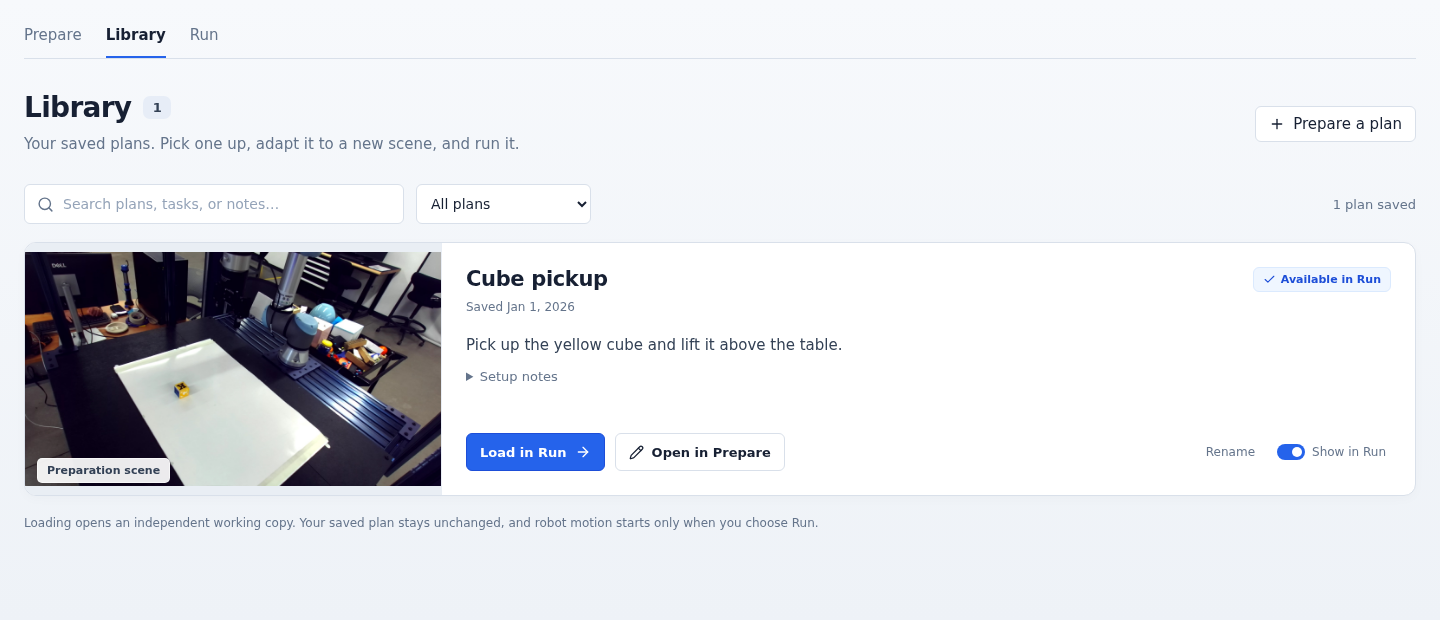
Example interface with synthetic data.#
In Library, rename a checkpoint, change whether it is available in Run, or open it in Prepare as a working copy. To preserve a revised plan, save a new checkpoint.
3. Load and re-ground#
Select Load in Run, or choose an enabled checkpoint in the Run page.
Inspect the restored plan and agent outputs.
Use Requery in the Vision Module panel for the current scene.
Review all annotations; use vision feedback for corrections.
Generate and review the current script.
Follow the execution guide to run the script.
The checkpoint’s saved image and coordinates are preparation data. Loading deliberately marks grounding and script readiness invalid until a successful new grounding pass.
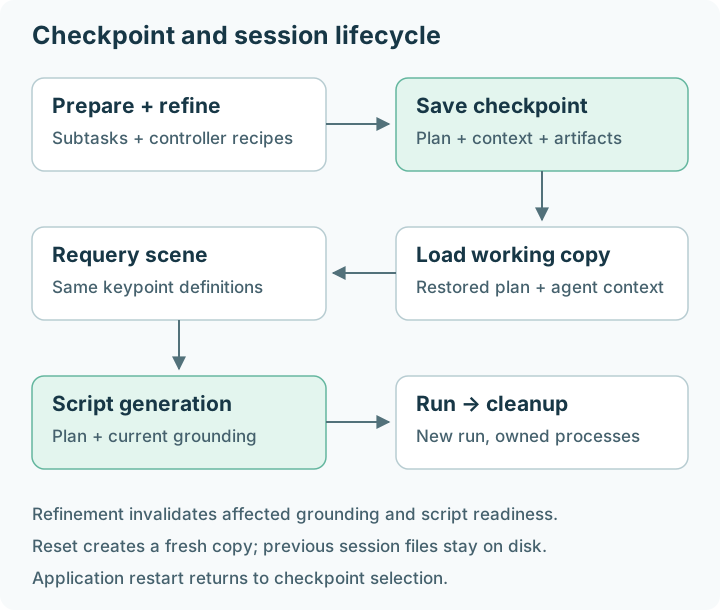
The checkpoint supplies the plan and agent context for each working session.#
Independent continuation#
Each working copy has independent agent objects, artifacts, and conversation context. The snapshot preserves model/provider choices, prompts, generation settings, and histories. A later model operation reconstructs independent provider context; it does not append feedback to the preparation conversation.
Credentials, camera configuration, calibration, robot address, and ROS environment come from the current machine. A saved script can also contain embedded tool geometry; regenerate it after requery using the reviewed current configuration.
Reset to Checkpoint creates a fresh session from the same checkpoint. Previous session artifacts and execution logs remain on disk. Browser refresh reconnects to the running application’s state; restarting the application returns to checkpoint selection.
Export versus checkpoint#
Save action |
Contains |
Intended use |
|---|---|---|
Save Workflow |
Current image/JSON/script artifacts |
Inspect or archive generated files |
Save Checkpoint |
Workflow, agents, histories, settings, and copied artifacts |
Continue the planning conversation independently |
Verify: load the checkpoint, confirm outputs are restored, and confirm script readiness requires requery. See storage and privacy.